Teamsheet
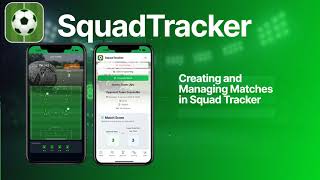
How to create and manage teamsheets for your matches
Last updated: 2026-09-14
More guides in this category
Step-by-step PDF guide
Annotated screenshots for every step
Using Teamsheets
Watch the video above for a walkthrough of the teamsheet feature.
What you'll learn
- How to create a teamsheet for a match
- Selecting players and setting positions
- Recording referee details and match administration
- Downloading the teamsheet as a PDF
- Open a match — Go to the Matches page and select a match
- Click "Teamsheet" — Open the teamsheet editor for that match
- Select your players — Choose which players are in the squad
- Set positions — Assign player positions on the teamsheet
- Add referee info — Record referee name and match admin details (fee paid, ID checks)
- Download PDF — Generate a professional PDF teamsheet to share or print
- Before kick-off* - open the match, tap **Teamsheet**, fill in the ground and referee, then collect signatures on the **Referee** tab (referee) and the **Coaches** tab (your manager and the opposition manager). Tap *Save Teamsheet. The player list is empty at this point because the match has not been played yet - that is expected.
- After the game* - complete the match as normal (live tracker or the match page). When you are asked, choose **Go to Teamsheet Now**, or open the match later and tap *View Teamsheet.
- The same teamsheet reopens with your signatures still in place, and the score, playing squad, goals and cards now filled in from the match. Every player is marked as ID-checked by default - untick any that were not.
- Tap Save Teamsheet*, then **Generate PDF** and *Download PDF.
- Referee* — Use the **Has Referee** toggle to say whether a referee is officiating, and enter their name. Most matches are created without a referee, so you can turn this on later - on match day, at half time or after the game - and it is saved when you tap *Save Teamsheet. The same toggle appears on the Match Info tab. Turning it off records the match as home-coach officiated. If your club appoints referees through its Referees section, the appointed referee is shown here read-only and is changed from that section instead.
- Referee Fee / Fee Paid — Record the fee and mark whether it has been paid
- Referee Signature — Capture the referee's signature on the pitch
- Opposition Has Match Sheet (Coaches tab) — Track whether the opposition has received their copy
Quick Steps
Signing before the game, finishing after
Most coaches get the teamsheet signed on the pitch before kick-off and finish it once the result is in. That works in one sheet - nothing you sign or save is lost when the match is completed:
The Save Teamsheet button sits at the bottom of the form, below the tabs - scroll down if you cannot see it.
Referee Tab
The referee tab lets you track important match-day administration:
If the referee toggle is on but no name has been entered, the teamsheet will not save until you add the name or turn the toggle off.